
Add White Border to Photo
Fit any photo into a square or 4:5 frame with a white border — no cropping, ready for Instagram.
Written by SamundraLast updated
Drag and drop files here
JPG, PNG, WebP and iPhone HEIC photos — multiple files at once
Your photos never leave your device — everything runs in your browser.
Related tools

Introduction
Add White Border to Photo is a free online tool that allows users to easily add a border to an image according to their needs. Whether you want to add a border to a photo, add a border to a picture, or create a professional-looking image border that attracts viewers, this tool makes it quick and easy. The tool is simple to use, so anyone can use it easily. According to the user's needs, it helps adjust the border size, preview the result in real time, and download the finished image instantly.
This tool helps make an image look clear and attractive for users. A simple white border creates a modern look for photography, while colorful border frames can make graphics more eye-catching. It also includes options such as a transparent border, a white border PNG, a picture frame border, frame borders, an outline border, and decorative photo borders.
Why Use Add Border to Image?
Adding a border to an image enhances the overall appearance of the photo and makes it more attractive. An attractive photo border helps separate the picture from its background, creates better visual balance, and gives your content a polished finish. Users can also create professional picture borders for websites and blogs.
Add stylish white borders for photography and portfolios.
Design attractive Instagram border layouts and white square Instagram posts.
Create beautiful picture frames with white border designs for printing.
Build clean outline image effects for logos and icons.
Add a decorative photo frame border to greeting cards and invitations.
Create a modern frame picture border for digital artwork.
Improve branding by adding a clean logo border.
Prepare profile pictures with a custom PFP border.
Key Features
This tool allows users to easily upload an image and use it, which supports image formats such as JPG, PNG, and WEBP.
It consists of multiple border style options, including simple image border designs, elegant border frames, and classic frame borders.
Users can adjust the border width of the image according to their requirements.
This tool supports a transparent border, including border png, border png transparent, png transparent border, and white border png styles for logos.
Create attractive Instagram border designs, whitagram for Instagram layouts, profile pictures, and eye-catching posts for Facebook, LinkedIn, Pinterest, and other social media platforms.
It provides quick processing and supports high-quality images.
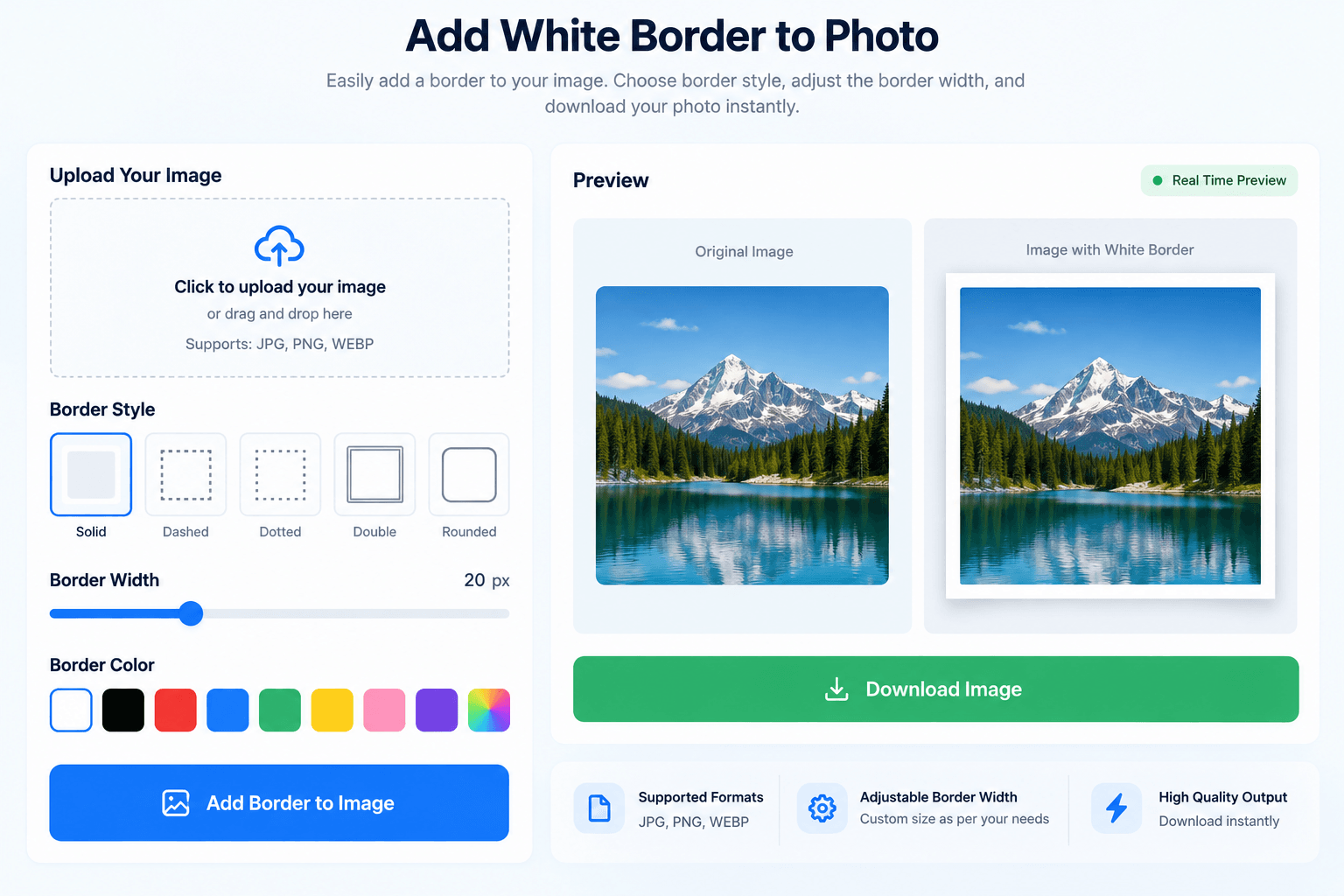
Supported Files, Limits & Output
Supported Input Formats:
JPG / JPEG
PNG
WEBP
Output Format:
JPG / JPEG
PNG
WEBP
Limits:
File size depends on the supported upload limit.
Very large images may take more time to process.
Image quality and photo size may affect processing time.
Output:
High-quality bordered image
Custom border width and border style
Transparent border and white border options
Ready for digital download
Try this Image color picker
How to use
Upload Your Image
Click the upload button and upload your image. The tool supports JPG, PNG, and WEBP.

Choose Border Style
Select your preferred border style, such as a white border, transparent border, outline border, or other border frames.
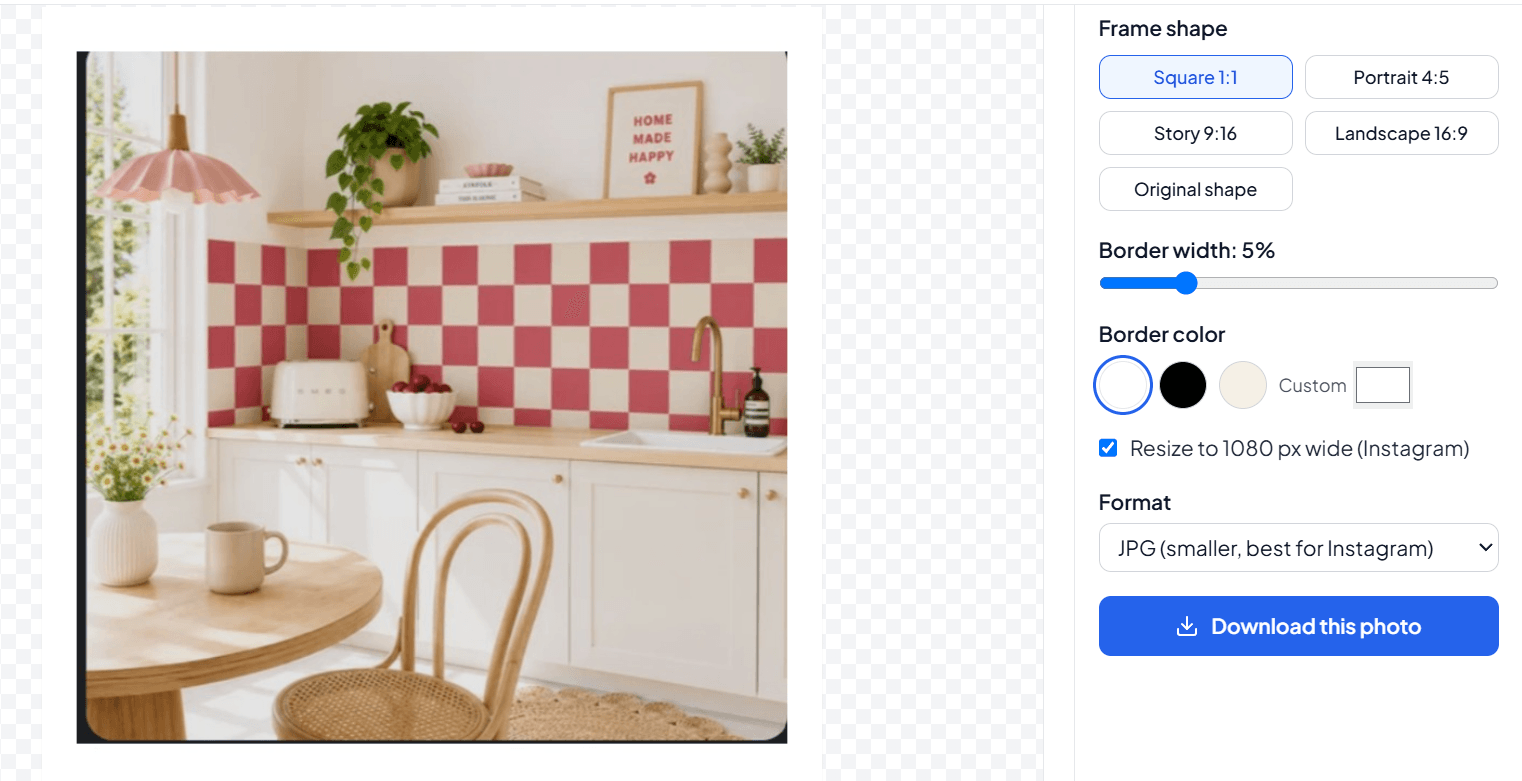
Adjust Border Width
Adjust the border width and size according to your needs. You can preview the changes in real time.
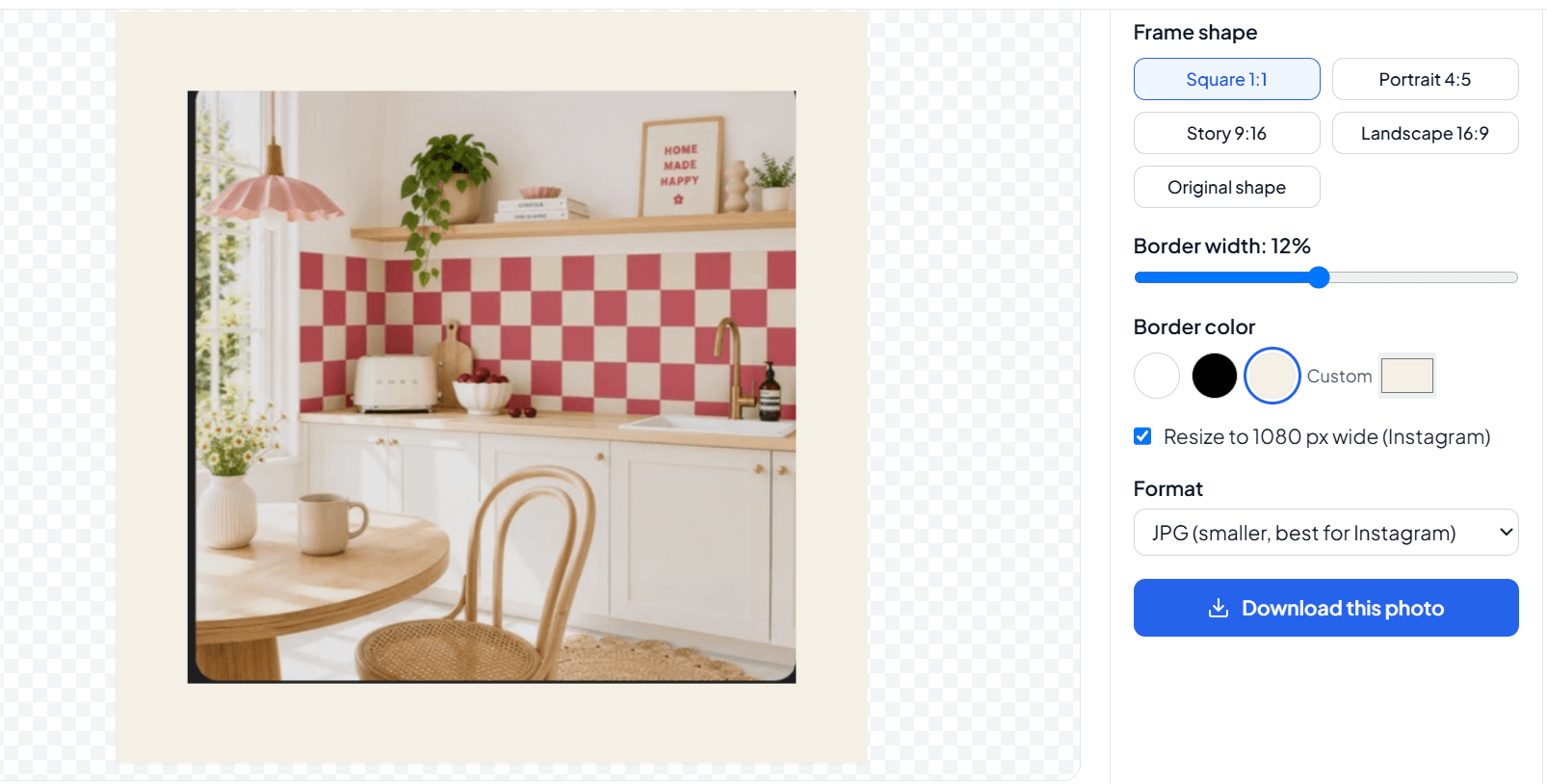
Download Your Image
Once you are satisfied with the border, click the download button to save your high-quality image.
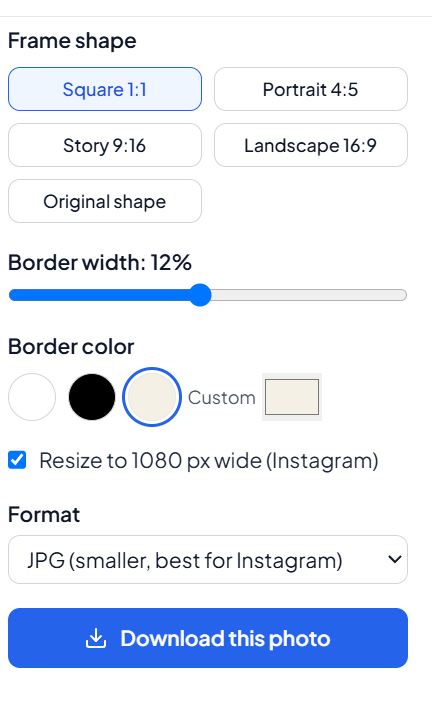
Frequently asked questions
What is Add Border to Image?
Add Border to Image is a free online tool for adding borders to photos and images. Users can choose different border styles, adjust the border width, and customize images according to their needs.
How can I add a white border to a photo
Upload your image, select a white border, and adjust the border width according to your photo. Once the border looks right, you can download the finished image.
Which image formats are supported?
The tool supports common image formats such as JPG, JPEG, PNG, and WEBP. Users can easily upload and process these image files online.
Can I add a transparent border?
Yes, the tool supports transparent borders for images. Transparent borders can be useful for logos, icons, graphics, and PNG images.
Can I create borders for social media?
Yes, you can create borders for Instagram, Facebook, LinkedIn, Pinterest, and other social media platforms. They can be used for profile pictures, posts, and other graphics.
Can I check the DPI of a bordered image?
Yes, you can use an Image DPI Checker to check the DPI and resolution of your finished image. This is especially useful when preparing an image for printing.
Can I remove EXIF metadata after adding a border?
Yes, you can use an EXIF Metadata Remover to remove hidden metadata from your finished image. It can remove information such as camera, location, date, and other stored details.
Can I change the image format after adding a border?
Yes, you can use an image converter to change your finished image into another supported format. For example, you can convert WebP to PNG or PNG to JPG.
Last updated:
Share this tool
Know someone who'd find it useful? Send it their way.